
Live preflight visibility and candidate filters
Monitor candidate setup, narrow exam attempts by candidate attributes, and find active attempts more easily.
New
2 updates- Follow candidate setup live. Support teams can open a read-only preflight view from an attempt’s status. See live setup progress, step history, readiness checks and device details to help investigate candidate setup issues.
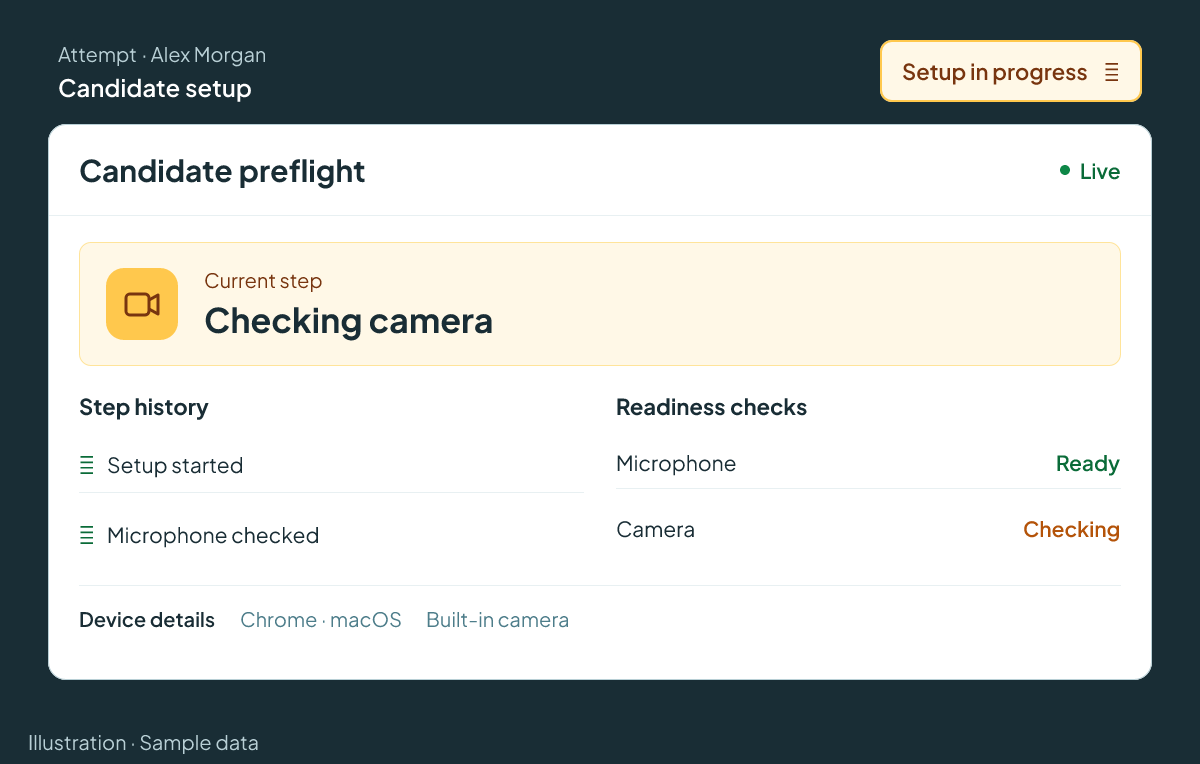
Illustration with sample data: support staff can open a read-only preflight view from an attempt’s status to follow live setup progress, history, readiness checks and device details. - Filter attempts by candidate attributes. Exam administrators can filter Attempt Management by candidate attributes they have permission to view. The same filter conditions carry through to CSV and marking-session exports, keeping lists and exports consistent.

Improvements
3 updates- Table navigation. Selection checkboxes and row action menus stay pinned while you scroll tables horizontally, keeping bulk selection and row actions within reach.
- Time remaining. Student attempt tables show time remaining for active whole-attempt timers, clearly labelled as a snapshot from the last refresh rather than a live countdown.
- Portal terminology. Administrators can customise External ID and facet labels in Portal Settings to match their organisation’s terminology, with the External ID label also reflected on account profiles.
Fixes
4 updates- Finding active attempts. Student attempt lists now place in-progress attempts first by default, with the most recently started at the top and completed attempts ordered by submission date.
- Resuming saved work. Save-and-exit messages tell students where to resume their attempt: the Attempts tab in Study or the Attempts button in their collection.
- Language selection. Language pickers show native and English names consistently for students and administrators, including variants for Chinese and Portuguese.
- Exam sidebar. Exam sidebar labels are aligned consistently, while longer user group names use the available row width and remain accessible in a tooltip.
Back to all release notesQuestions? Get in touch through your portal.